How to use Google's Speech-to-Text API to transcribe audio in Python
Learn how to set up a Google Cloud project to transcribe both local and remote audio files using Google's Speech-to-Text API and Python


With AI now firmly established in end-user products according to a recent industry report, the Google Cloud Speech-to-Text API is a potential solution for organizations looking to build features around Voice AI. It is especially compelling for organizations that store much of their data in Google Cloud Storage (GCS) and are already deeply integrated in the Google ecosystem. This tutorial will guide you through the process of using Google Cloud's Speech-to-Text API in your Python projects.
We'll cover everything from initial setup and authentication to implementing both local and remote file transcription, plus troubleshooting common issues and optimization techniques to get the best performance from the API.
What is the Google Cloud speech-to-text API?
The Google Cloud Speech-to-Text API converts audio files and real-time audio streams into text using Google's AI models. The API supports over 125 languages, which competitive analysis shows is the most extensive coverage among major providers. It also returns confidence scores, and integrates with Google Cloud Storage for scalable transcription workflows.
Key Features
- Support for various audio formats and languages: The API supports a wide range of audio formats and many languages and dialects (to varying degrees of accuracy and feature-completeness)
- Streaming speech-to-text: Google offers streaming speech-to-text, meaning that you can stream audio to Google and get transcription results back in real-time. This can be useful for things like live closed captioning on virtual events. Check out our related article on Streaming Speech-to-Text with Google's API to learn more about how to implement it.
- Speaker diarization: The API can perform Speaker Diarization, distinguishing between different speakers in the audio.
- Automatic punctuation and casing: The API can automatically add punctuation and capitalization to the transcribed text.
- Word-level confidence scores: The API can provide confidence scores for each word in the transcription.
Strengths
- Pricing model: Google's API is priced as a usage-based model, so your costs rise only with increased usage. You can use their calculator to estimate costs based on your particular needs.
- SDKs: Google offers SDKs or client libraries for many languages to make working with their API easier.
- Documentation: Google generally has good documentation that is well-synced to their product lifecycle, although it can be overwhelming given how many products they offer.
Weaknesses
- Accuracy: Google has accurate speech-to-text models that maintain parity with industry leaders. Check out our benchmarks page to see a detailed performance comparison for popular speech-to-text providers.
- Feature-completeness: While Google does offer some features for speech analysis beyond transcription, like sentiment analysis, their available models and features for Speech Understanding and an LLM Gateway do not provide the same level of feature-coverage as some other providers. For example, some reports suggest that alternatives can bundle transcription with features like PII detection and comprehensive sentiment analysis in a single API call.
- Focus: While Google has a strong AI research division, it also offers a huge range of products and services which can lead to a lack of focus in bringing these models to market, creating a feature-lag relative to other providers
- Support: Google has strong documentation, but this comes with the expectation that developers will be able to troubleshoot most problems themselves. This can be a drawback for smaller organizations that want more dedicated support responsiveness, as research with founders indicates that partnering with an AI provider for ongoing support is a key way to lighten the development load.
- Ecosystem-dependence: For teams not already heavily integrated into the Google ecosystem, it can be confusing and time consuming to navigate Google Cloud projects. While recent provider comparisons note that this native integration can streamline workflows for existing GCP users, it presents a steeper learning curve for others.
Evaluate alternatives to GCP and discuss requirements like support SLAs, migration paths, and built-in features such as diarization and sentiment analysis.
Talk to AI expertPrerequisites and requirements
Before you get started, you'll need Python and a Google account.
Install the required packages:
pip install google-cloud-speech requests
- google-cloud-speech: Official Google Cloud client library
- requests: HTTP library for downloading remote files
Google Cloud project setup and authentication
Create a Google Cloud project and enable the Speech-to-Text API:
Step 1: Create a Google Cloud project
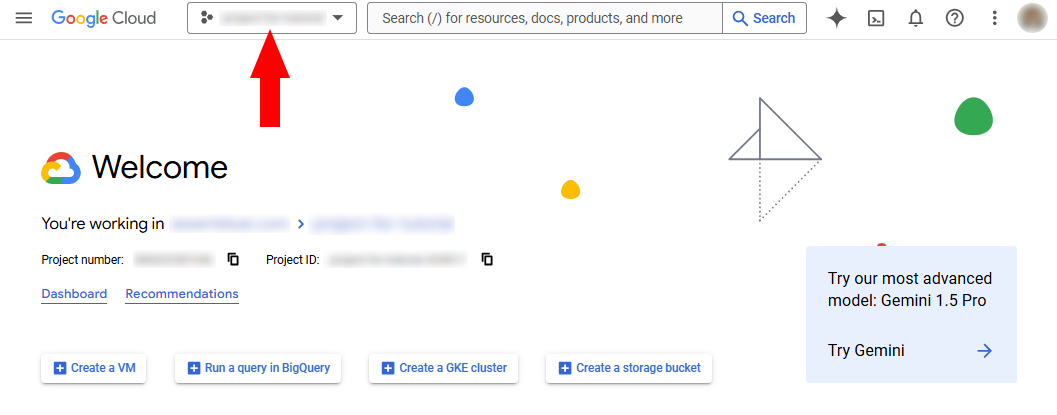
Go to the Google Cloud Console. Click on the project dropdown at the top of the page
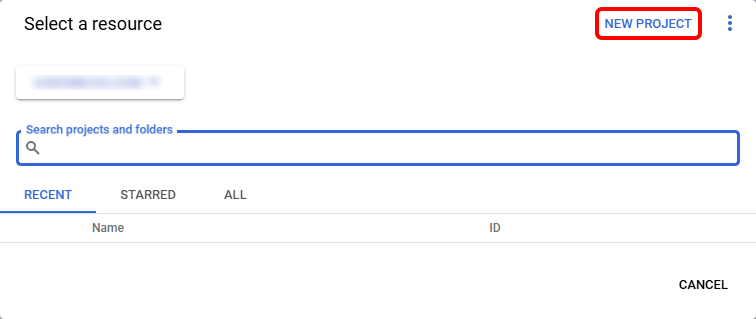
In the popup modal, select "New Project". Enter a name for your project and click "Create".
Step 2: Enable the speech-to-text API
Once the project is created, select it from the project dropdown at the top of the page if it is not already selected. Navigate to the API Library and search for "Speech-to-Text API". Click on the "Speech-to-Text API" result and then click "Enable". You may need to select your project from the dropdown if you used the previous link.

Step 3: Create a service account and generate a JSON key file
Next, you'll create a service account. Service accounts are special Google accounts that belong to your application, rather than to an individual end user, which authenticate your application with Google Cloud services securely. By creating a service account, you can generate a key file that your application can use to authenticate API requests.
In the Google Cloud Console, navigate to the IAM & Admin section (you again may need to select your project from the dropdown if you use this link). Click on "Service Accounts" in the left-hand menu if it's not already selected, and then click "Create Service Account" at the top of the page.
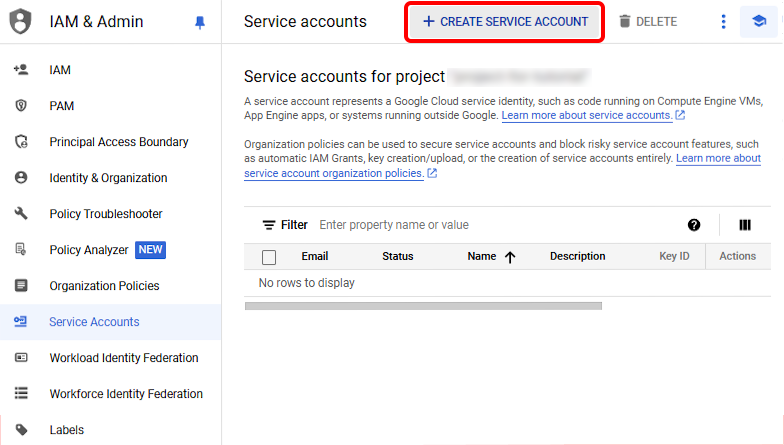
Enter a name and description for the service account, then click "Create and Continue". You can then click "Done" to skip the two optional steps. You will be brought back to the Service Accounts overview page. Click on the service account you just created in the list, and then click on the Keys tab. Find the button that says Add Key, select it, and then click Create new key from the dropdown.
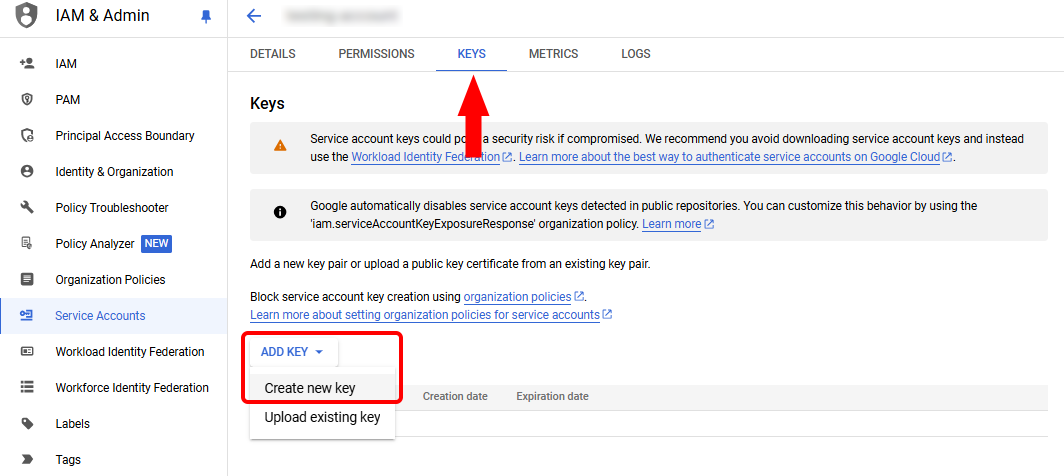
Select JSON from the options and then click Create. This will download the JSON private key to your computer. You may be presented with an additional screen notifying you of the security implications of being in possession of the private key - hit "accept" to advance. Remember to keep the private key file secret and not e.g. check it in to source control.
Step 4: Set the credentials environment variable
Next, you'll set the GOOGLE_APPLICATION_CREDENTIALS environment variable to point to your JSON key file. Locate the JSON key file you downloaded in the previous step. Open a terminal and run the following command, replacing path/to/your/service-account-file.json with the actual path to your JSON key file:
export GOOGLE_APPLICATION_CREDENTIALS="path/to/your/service-account-file.json"
To make this change permanent, you can add the above command to your shell's startup file (e.g. ~/.bashrc).
Step 5: Initialize the speech-to-text client in your Python code
Now your Google Cloud project is configured with the Speech-to-Text API enabled, and your local workstation is authenticated to submit requests to the project. Next we have to write some code to submit these requests, which we'll do now. We'll start by showing how to transcribe remote files, and then show how to transcribe local files.
Remote file transcription with Google speech-to-text
First we'll learn how to perform asynchronous transcription of a remote file. To transcribe a remote file with Google's Speech-to-Text API, it must be stored in Google Cloud Storage (GCS). The general URL structure for these sorts of files is gs://<bucket_name>/<file_path>. We provide an example file you can use, but if you want to use your own you'll have to create a storage bucket and upload your file.
Once you have files stored remotely in GCS, you can easily use them with Google's Speech-to-Text API. Create a file called remote.py and add the following code:
from google.cloud import speech


def transcribe_audio_gcs(gcs_uri):
    client = speech.SpeechClient()
First, we import the google.cloud.speech module from the google-cloud-speech library. Then we define the transcribe_audio_gcs function, which handles the transcription itself. This function in turn creates a SpeechClient to interact with the API. Next, add the following lines to the transcribe_audio_gcs function:
    audio = speech.RecognitionAudio(uri=gcs_uri)
    config = speech.RecognitionConfig(
        encoding=speech.RecognitionConfig.AudioEncoding.LINEAR16,
        language_code="en-US",
    )
This code creates two essential objects:
RecognitionAudio: Contains the GCS URI of your audio fileRecognitionConfig: Specifies audio encoding (LINEAR16) and language code (en-US)
Add the transcription call:
    response = client.recognize(config=config, audio=audio)

    for result in response.results:
        print("Transcript: {}".format(result.alternatives[0].transcript))
The first line uses the client.recognize method to submit the file for transcription.
The RecognizeResponse object contains transcription results.
Response structure:
results: List of transcription results for each audio segmentalternatives: Multiple transcription possibilities, ordered by confidencetranscript: The actual transcribed text
Set max_alternatives in RecognitionConfig to get multiple transcription options (default: 1).
Lastly, add the following lines to the bottom of remote.py to set the GCS URI of the file we want to transcribe and pass it into the transcribe_audio_gcs function:
if __name__ == "__main__":
    gcs_uri = "gs://cloud-samples-data/speech/brooklyn_bridge.raw"
    transcribe_audio_gcs(gcs_uri)
Run python remote.py in the terminal to execute this script. Make sure to do so in the same terminal where you set the GOOGLE_APPLICATION_CREDENTIALS environment variable. After a short wait, you'll see the following results printed to the terminal:
Transcript: how old is the Brooklyn Bridge
Note that for files that are not WAV or FLAC, you need to specify the sample rate of the file via the sample_rate_hertz parameter in the speech.RecognitionConfig.
Google recommends a sampling rate of 16 kHz, but if this is not possible to use the native sample rate of the audio source rather than attempting to resample.
Local file transcription with Google speech-to-text
It's also possible to transcribe a local audio file with Google's Speech-to-Text API, let's do that now. Create a file called local.py and add the following code:
from google.cloud import speech


def transcribe_audio_local(file_path):
    client = speech.SpeechClient()

    with open(file_path, "rb") as audio_file:
        content = audio_file.read()

    audio = speech.RecognitionAudio(content=content)
    config = speech.RecognitionConfig(
        encoding=speech.RecognitionConfig.AudioEncoding.LINEAR16,
        language_code="en-US",
    )

    response = client.recognize(config=config, audio=audio)

    for result in response.results:
        print("Transcript: {}".format(result.alternatives[0].transcript))
The contents of transcribe_audio_local are almost identical to those of transcribe_audio_gcs, except for these lines:
    with open(file_path, "rb") as audio_file:
        content = audio_file.read()

    audio = speech.RecognitionAudio(content=content)
These lines open and read the bytes of the audio file, and then pass them into the speech.RecognitionAudio constructor via the content parameter, rather than the uri parameter as above.
The current script transcribes local file.wav files. Let's add remote file download capability for non-GCS files.
Add this download function:
import requests


def download_file(url, filename):
    response = requests.get(url)
    with open(filename, "wb") as f:
        f.write(response.content)
    return filename


if __name__ == "__main__":
    # Download a sample file
    url = "https://storage.googleapis.com/cloud-samples-data/speech/brooklyn_bridge.raw"
    local_file = download_file(url, "audio.raw")

    transcribe_audio_local(local_file)
These lines add a function to download a remote audio file and write it locally to disk, and modify the __main__ block to call this function with the file we used in the previous section. Now if you run python local.py, you will see the following output in the terminal:
Transcript: how old is the Brooklyn Bridge
Note that, as mentioned in the last section, you need to specify the sample rate of the file via the sample_rate_hertz parameter in the speech.RecognitionConfig for audio files that are not WAV or FLAC.
Error handling and troubleshooting
Common Google Cloud Speech-to-Text API errors and solutions:
Authentication errors
The most common error is google.auth.exceptions.DefaultCredentialsError. This means GOOGLE_APPLICATION_CREDENTIALS isn't set correctly.
Quick diagnostic:
import os
print(os.environ.get('GOOGLE_APPLICATION_CREDENTIALS'))
Invalid argument errors
An InvalidArgument error often points to a mismatch in your RecognitionConfig. For example, sending a FLAC file but specifying LINEAR16 as the encoding, or forgetting to set sample_rate_hertz for formats that require it. Always verify your audio file's properties match your configuration.
# Example of handling sample rate for non-WAV/FLAC files
config = speech.RecognitionConfig(
    encoding=speech.RecognitionConfig.AudioEncoding.MP3,
    sample_rate_hertz=16000,  # Required for MP3
    language_code="en-US",
)
Adding error handling to your code
To make your application more robust, wrap your API calls in a try...except block to catch potential exceptions from the client library. This allows you to gracefully handle issues like invalid credentials or network problems without crashing your application.
from google.api_core import exceptions


def transcribe_with_error_handling(gcs_uri):
    try:
        client = speech.SpeechClient()
        audio = speech.RecognitionAudio(uri=gcs_uri)
        config = speech.RecognitionConfig(
            encoding=speech.RecognitionConfig.AudioEncoding.LINEAR16,
            language_code="en-US",
        )

        response = client.recognize(config=config, audio=audio)
        return response

    except exceptions.InvalidArgument as e:
        print(f"Invalid argument error: {e}")
    except exceptions.PermissionDenied as e:
        print(f"Permission denied: {e}")
    except Exception as e:
        print(f"An unexpected error occurred: {e}")
Performance optimization tips
To get the best performance from the Google Cloud Speech-to-Text API, keep these tips in mind:
- Choose the right audio format: For the highest accuracy, use a lossless codec like FLAC or LINEAR16. While compressed formats work, they can sometimes introduce artifacts that impact transcription quality.
- Use asynchronous calls for long audio: For audio files longer than one minute, the
recognizemethod will fail. You must use thelong_running_recognizemethod, which is designed for batch processing and avoids potential timeouts. As documentation on its capabilities confirms, this method can handle files up to 8 hours long. - Leverage speech adaptation: If you're transcribing audio with specific jargon, product names, or proper nouns, use speech adaptation to provide hints to the model. This can significantly improve its accuracy for your specific use case.
Here's an example of using long_running_recognize for longer audio files:
def transcribe_long_audio(gcs_uri):
    client = speech.SpeechClient()

    audio = speech.RecognitionAudio(uri=gcs_uri)
    config = speech.RecognitionConfig(
        encoding=speech.RecognitionConfig.AudioEncoding.LINEAR16,
        language_code="en-US",
    )

    operation = client.long_running_recognize(config=config, audio=audio)

    print("Waiting for operation to complete...")
    response = operation.result(timeout=90)

    for result in response.results:
        print("Transcript: {}".format(result.alternatives[0].transcript))
Next steps with Voice AI
You've implemented Google Cloud Speech-to-Text in Python with both local and remote file transcription.
Advanced Google Cloud features:
For a simpler setup and more advanced features like speaker diarization, summarization, and sentiment analysis, consider alternatives like AssemblyAI. You can transcribe an audio file and identify different speakers with just a few lines of code:
import assemblyai as aai


aai.settings.api_key = "YOUR_API_KEY"

# URL of the file to transcribe
audio_url = "https://storage.googleapis.com/aai-docs-samples/nbc.mp3"

# Set up the transcription configuration
config = aai.TranscriptionConfig(speaker_labels=True)

# Initialize the transcriber
transcriber = aai.Transcriber()

# Transcribe the audio
transcript = transcriber.transcribe(audio_url, config)

if transcript.status == aai.TranscriptStatus.error:
    print(f"Transcription failed: {transcript.error}")
else:
    for utterance in transcript.utterances:
        print(f"Speaker {utterance.speaker}: {utterance.text}")
Check out our Docs to learn more, or try our API for free.
For inspiration on features you can build on top of speech-to-text and Voice AI more widely, check out our YouTube channel. There you'll find AI deep-dives, how-to tutorials for popular frameworks, and walkthroughs on building features on top of Voice AI, like this video on automatically extracting phone call insights using LLMs:
Frequently asked questions about Google Cloud speech-to-text implementation
How do I debug "default credentials" authentication errors?
This error means the Python client library can't find your authentication key. Ensure the GOOGLE_APPLICATION_CREDENTIALS environment variable is set correctly in your terminal session and points to the valid JSON key file you downloaded from your Google Cloud project.
What audio formats require specifying sample rates?
You must specify the sample_rate_hertz in your RecognitionConfig for all formats except WAV and FLAC, as these file types include the sample rate in their headers. For other formats like MP3 or OGG, you must provide this value manually.
How do I handle API rate limiting and quota errors?
Google Cloud returns ResourceExhausted errors when you exceed quota limits. As Python programming guides recommend, you can implement exponential backoff retry logic or use concurrent programming techniques to manage multiple requests. You can also request quota increases through Google Cloud support.
What are the performance differences between local and remote file processing?
Local file processing sends the entire audio content in the request body, which is limited to 10 MB for synchronous requests. Remote files in Google Cloud Storage don't have this size limitation and can be processed more efficiently for larger files. Additionally, GCS files can leverage Google's internal network for faster processing, while local files require upload bandwidth from your application.
How do I implement retry logic for production applications?
Use google.api_core.retry module for built-in exponential backoff with jitter to handle transient failures automatically.
Lorem ipsum dolor sit amet, consectetur adipiscing elit, sed do eiusmod tempor incididunt ut labore et dolore magna aliqua. Ut enim ad minim veniam, quis nostrud exercitation ullamco laboris nisi ut aliquip ex ea commodo consequat. Duis aute irure dolor in reprehenderit in voluptate velit esse cillum dolore eu fugiat nulla pariatur.
Related posts